
Weda imposes strong authentication for every login, without exception. This requirement, which eliminates any possibility of a single password, is part of a broader movement towards national standardization of access to health software. For professionals who use this medical software daily, the question is not so much why security is being strengthened, but how to navigate effectively between the different methods offered.
Weda Authentication and Ségur Compliance: What Has Changed in the Requirements
The Ségur digital health frameworks have gradually raised the level of requirements for business software. Strong authentication via Pro Santé Connect is no longer a security bonus: it becomes a compliance brick expected from publishers. This tightening explains why Weda has removed the simple password login, a choice that still confuses some users accustomed to more direct access.
The regulatory trajectory aims for massive adoption of Pro Santé Connect in the coming years. For practitioners, this standardization has a direct practical consequence: the same Pro Santé Connect identifier works across multiple health tools. Fewer different passwords to remember, with login processes that resemble each other from one software to another.
A guide detailing the secure Weda login via Optisanté allows users to visualize each step of the process, which remains useful when discovering the system for the first time.
Pro Santé Connect or MFA by Login: Comparison of the Two Weda Login Methods
Weda offers two authentication pathways. The choice between the two depends on the equipment available to the practitioner and their habits. Here are their characteristics compared.
| Criterion | Pro Santé Connect (e-CPS) | Login + password (MFA) |
|---|---|---|
| Required support | Physical CPS card or e-CPS app on smartphone | Computer + smartphone (required for the temporary code) |
| Number of steps | Two (identification + validation on the app or reader) | Three (login, password, MFA code on smartphone) |
| Usable on multiple health software | Yes (interoperable unique identifier) | No (specific to Weda) |
| Initial setup | e-CPS activation via the dedicated portal | MFA setup during the first login |
| Weda recommendation | Recommended method | Valid alternative |

Both methods provide access to the same features once logged in. The difference lies in the daily fluidity and the sustainability of the system.
Why Pro Santé Connect Has the Advantage in the Medium Term
The interoperability of Pro Santé Connect changes the game for practitioners juggling multiple tools. A doctor who already uses PSC to access the digital prescription or DMP finds the same pathway on Weda. In contrast, the MFA login method remains isolated: the password and temporary code are only for Weda.
As the Ségur frameworks impose PSC as the standard, professionals who adopt PSC now reduce their future cognitive load. The number of passwords to manage decreases, and the risk associated with reusing the same password across multiple services disappears.
Mobile Access to Weda: Technical Constraints and Points of Caution
The Weda Mobile app allows users to consult patient records from a smartphone. Mobile access uses the same strong authentication mechanisms as the desktop version, but the experience differs in several ways.
- Activating Weda Mobile requires initial setup from a computer via the portal secure.weda.fr. This step cannot be fully completed from the phone.
- The smartphone used for MFA two-factor authentication cannot be the same device used to access Weda Mobile if using the login/password method. Two distinct devices are necessary in this case.
- With Pro Santé Connect and the e-CPS app, validation occurs on the same smartphone, simplifying the mobile experience.
The PSC method is the only one that allows for smooth mobile access with a single device. This is a decisive criterion for practitioners on home visits or in multi-professional health centers.
Common Errors That Block Access to the Weda Account
Several situations frequently arise that prevent access to the account, without the problem stemming from Weda itself.
The first concerns the e-CPS app not activated or expired. Activating the dematerialized CPS card goes through a specific portal and requires identity validation. If this step has not been completed, Pro Santé Connect will refuse authentication without an explicit error message.
The second source of blockage relates to MFA: the temporary code generated by the authentication app has a short validity period. A clock discrepancy between the smartphone and the server is enough to invalidate the code. Synchronizing the phone’s time in automatic mode resolves most of these failures.
The third common case: the browser. Weda works on recent browsers, but certain security extensions or proxy configurations in health establishments may block redirects to Pro Santé Connect. Testing with a browser without active extensions allows for quick isolation of this type of issue.
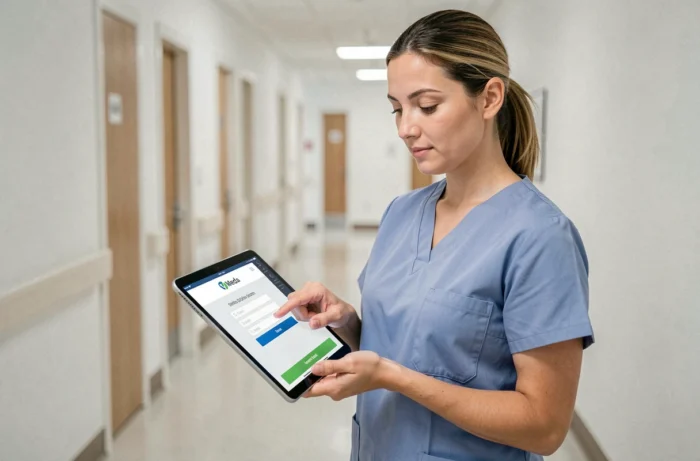
Resetting the Weda Password
If the password used for the MFA method is forgotten, the procedure goes through the email address associated with the account. The new password must meet the robustness criteria imposed by the platform. No reset by phone is offered, which avoids risks related to SIM swapping.
Weda’s choice to offer no simple password login reflects an underlying trend in the digital health sector. Patient data is among the most sensitive that exist, and strong authentication mechanisms are becoming the norm across all referenced software.
For practitioners, the time invested in the initial setup of Pro Santé Connect or MFA translates into quick daily access, provided that their tools have been properly configured from the start.